

What it looks like
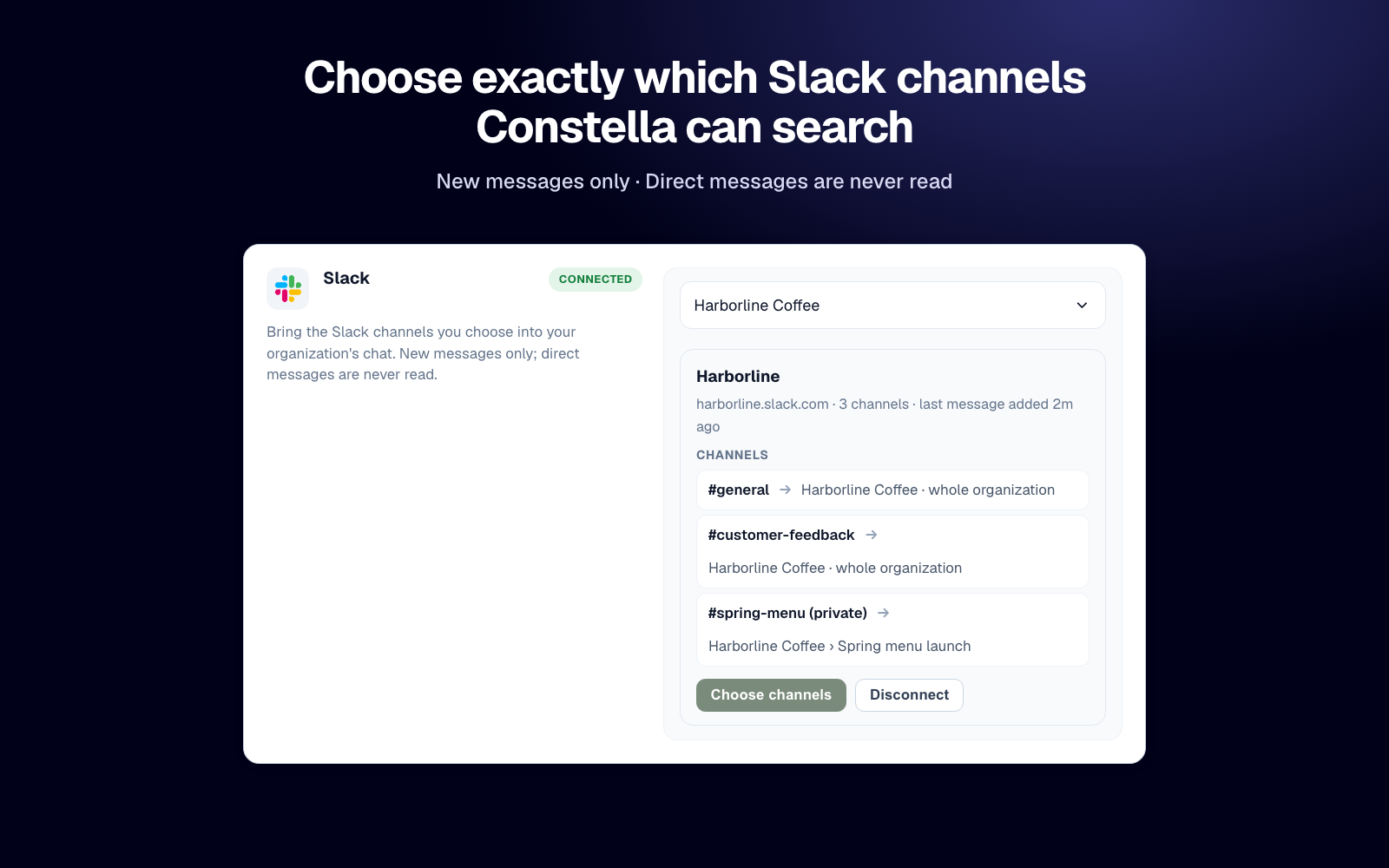
How to install
You need to be an owner or administrator of a Constella organization on the Team plan.
- Click Add to Slack (or go to Settings › Connections and click Connect Slack), sign in to Constella and choose your organization.
- Approve on Slack's page. If your workspace needs approval for new apps, Slack asks your Slack admin first.
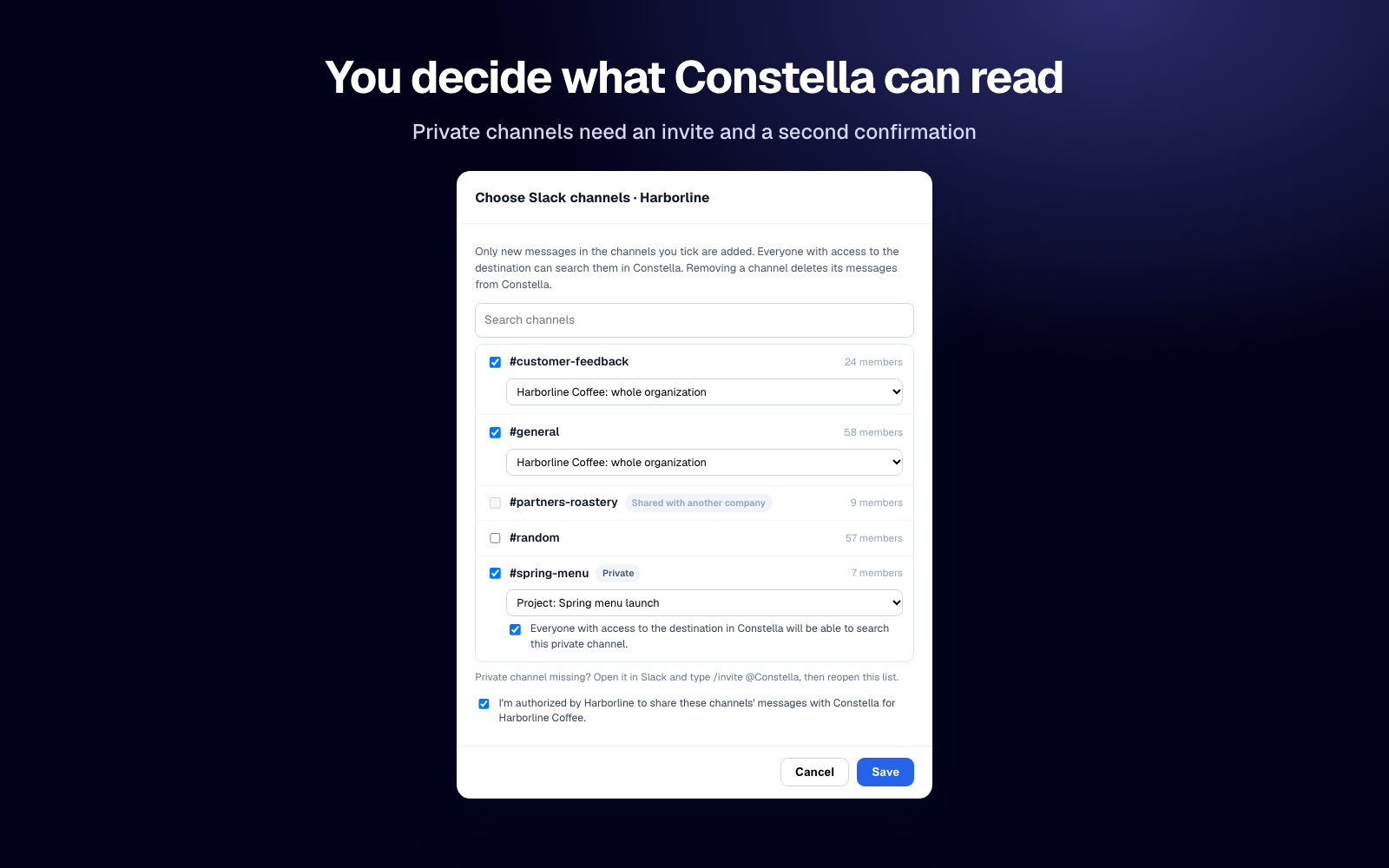
- Click Choose channels, tick the channels, pick where each one goes, confirm you're authorized to share them, and save. Constella joins public channels and posts a short notice in each one.
- For a private channel, type
/invite @Constellain it first, then tick it in Choose channels.
How it works
- New messages only. Messages are added from the moment a channel is selected, usually within two minutes. Earlier history isn't imported.
- Edits and deletions follow Slack. Edit a message and Constella updates it; delete it and it's deleted from Constella.
- Answers cite their sources with a link to the Slack message.
Privacy and control
- Direct messages and group direct messages are never read. The app doesn't ask for permission to read them.
- Removing a channel, removing Constella from a channel, or disconnecting deletes the related messages from Constella.
- Messages are kept for up to one year after a conversation's last message.
- Your Slack data is never used to train AI models. Read our Privacy Policy and visit Trust.
Help
See Support or email info@askconstella.com.